


Microsoft Authenticator
4.6115.75K Reviews
App Specs
- Version
- 6.2609.6214
- Updated On
- License
- Free
- Downloads
- 100,000,000+
- Developer
- Microsoft Corporation
- Categories
- Business
- Platform
- Android, iOS
Screenshots
 Analysis by AppCompare
I like an authenticator most when it fades into the background: I want a quick, clear way to prove it’s me without turning every sign-in into a project. Microsoft Authenticator is a business-focused security app from Microsoft Corporation, and I see its main appeal in the everyday balance it aims for: stronger account checks without having to remember another password just to open the app. It is free to download, so there is no purchase decision to weigh before trying it.
What free access means in practice
The app is listed as free, which makes it easy to test alongside the accounts you already use. I’d treat that as a straightforward access fact, not a promise that every service you connect is free or that every account offers the same sign-in choices. Those depend on the individual service. For someone who wants an additional verification method without paying for the authenticator itself, the entry point is appealing; the value comes from whether it fits the accounts and devices they actually rely on.
Its scale is notable: it has more than 100 million installs and an average rating of 4.6 from around 2.4 million ratings. That suggests plenty of people have found it useful, but popularity is not a guarantee that it will suit your setup. I would still judge it by a practical question: does it make your own sign-ins safer and manageable without adding more friction than you can live with?
Guides and Analysis on Microsoft Authenticator
Getting Started with Microsoft Authenticator
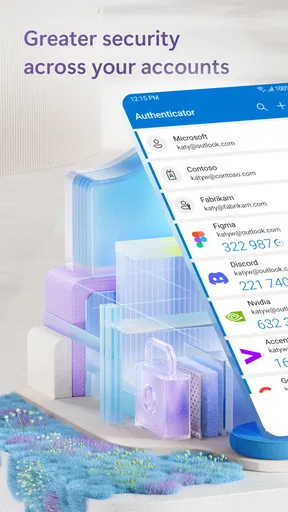
First things first, downloading Microsoft Authenticator is a breeze. Just hop onto the Play Store or App Store, and in a couple of taps, you’re ready to roll. Setting it up is straightforward too. You just scan a QR code from the accounts you want to secure, and voilà, you're in business.
What I really appreciate about this app is its clean and intuitive interface. You don’t need to be a tech wizard to navigate through it. Everything is laid out clearly, making it easy to add new accounts or manage existing ones. Its current version is 6.2512.8111, and it runs on Android starting with OS 8.0. The app is rated for Everyone, which is a useful accessibility detail, though account security still calls for care from whoever uses the device.
Features That Stand Out
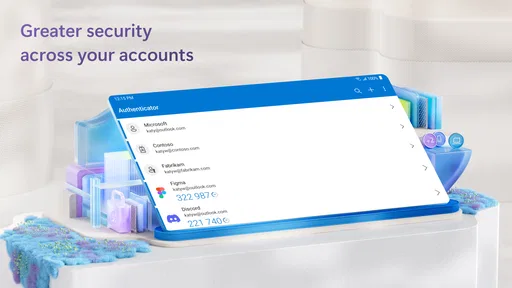
One feature that really stands out is the app’s ability to provide multi-factor authentication. This means even if someone gets hold of your password, they’d still need your phone to access your account. It’s like having a digital fortress!
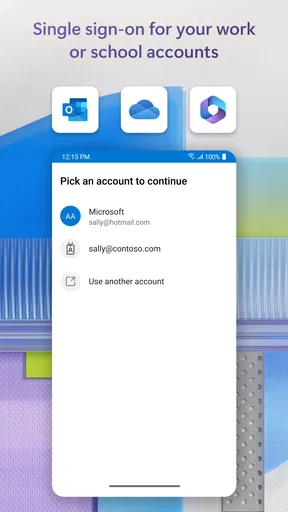
Another neat feature is the app's integration with Microsoft accounts. If you’re embedded in the Microsoft ecosystem, this app feels like a natural extension. But don't worry, it works seamlessly with other platforms too.
Worth Reading Before You Choose

Flipboard Shows What News Apps Must Do Beyond the Feed

Switching to Android Auto Means Rethinking Your Driving Routine

Google Calendar Makes a Crowded Week Easier to Manage

Ludo King Makes the Most of the Minutes Between Plans

Baby Panda World Brings Quick Play to Modern Phones, but Its Game Library Feels Busy

ESPN’s Live Game View Makes Following Close Games Easier
And for those of us who dread losing our phones, the app offers a backup option. You can save your account info to the cloud, making it easy to transfer your data to a new device. It’s a lifesaver for those "oops" moments.
Using it beyond the setup screen
The useful test is not whether adding one account is easy, but whether the app still feels manageable once you have several. I’d add accounts gradually and give each entry a recognizable label where the service allows it. That small bit of housekeeping matters when you’re signing in under pressure: you want to identify the right account quickly rather than guess among similar entries.
For a realistic routine, imagine starting work on a laptop, then being asked to verify a sign-in while your phone is across the room. Authenticator can be helpful in that moment, but the phone remains part of the sign-in process. I’d keep it somewhere accessible during work or travel, and I wouldn’t wait until a critical login to discover that the device is unavailable or that an account’s recovery route is unclear.
A less obvious benefit of using a dedicated authenticator is separating verification from the password you type. That does not make a weak or reused password harmless, and it does not make every phishing attempt easy to spot. I still recommend using unique passwords and checking the sign-in page carefully before approving anything. The app is one layer in a sensible routine, not a replacement for judgment.
Choosing the right sign-in method
Authenticator is not the same thing as a password manager. A password manager is built around storing and filling credentials; an authenticator’s central job is to help verify access. If your biggest daily problem is forgetting passwords, you may want a password manager as well rather than expecting this app to solve both tasks. For people who mostly need extra sign-in confirmation, the distinction is useful: each tool addresses a different weak point.
Compared with receiving verification codes by text message, an authenticator app can keep the second step tied to the device rather than relying on a text arriving at the right time. But the better choice depends on the account’s options and your circumstances. If you often have limited connectivity, travel, or change phones, plan the recovery process before relying on any single method. A code-based app still depends on having access to the device and the relevant account setup.
Some services also offer security keys or other sign-in approaches. Those may suit someone who wants a separate physical device or has a more specialized security setup, while Authenticator is more convenient for people who already carry a smartphone. I see its strength as practical accessibility, not as a universal replacement for every security method. Choose the option you can use consistently and recover from responsibly.
Where the convenience has limits
The phone is both the convenience and the point of friction. If it is misplaced, damaged, unavailable, or being replaced, sign-in can become stressful unless you have prepared. The backup option can help with moving account information, but I would not treat a backup as a complete recovery plan for every connected service. Each service may have its own account recovery steps, so keep those routes current and understand them before an emergency.
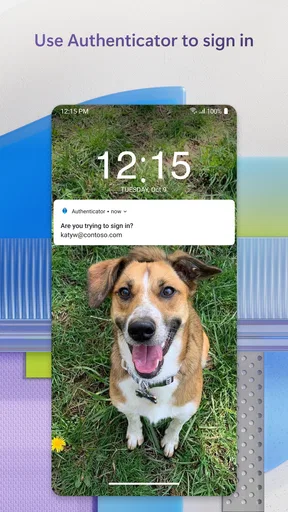
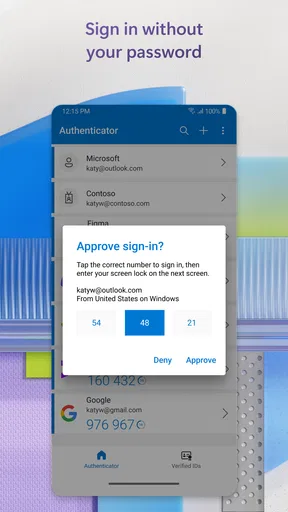
There is also a small ongoing habit involved: keep the app and the phone usable, and avoid approving a prompt you did not initiate. If an unexpected request appears, pause and check whether you were actually signing in. This is especially important when a verification prompt arrives while you are busy; approving quickly just to clear the screen defeats the point of asking for confirmation.
People who share a phone, avoid smartphone-based tools, or need an authentication method independent of their handset may find this a poor fit. Likewise, if you only need to store and fill passwords, this is not a substitute for a dedicated password manager. I would skip it as a sole solution if losing phone access would leave you without a realistic way back into important accounts.
Who is likely to get the most value?
I’d recommend trying it if you use Microsoft accounts regularly, want a simple place to handle verification for supported services, and are comfortable keeping your phone involved in sign-ins. It can also make sense for someone managing personal and work accounts who wants the verification step close at hand, provided their workplace permits the setup they intend to use.
Before adding a high-stakes account, I’d check that account’s security settings, confirm which verification methods it accepts, and review its recovery options. Then add one account, complete a test sign-in, and make sure you understand what the approval or code prompt looks like. This is a more useful first test than loading the app with every account at once and hoping the workflow is clear later.
Microsoft Authenticator was released on January 13, 2015, and its long-established presence is reflected in the volume of people who have installed and rated it. I would not use its age or popularity as a substitute for checking that it meets your needs, but they do make it a familiar option rather than a new, untested name in the business-app space.
Features That Stand Out
One feature that really stands out is the app’s ability to provide multi-factor authentication. This means even if someone gets hold of your password, they’d still need your phone to access your account. It’s like having a digital fortress!
Another neat feature is the app's integration with Microsoft accounts. If you’re embedded in the Microsoft ecosystem, this app feels like a natural extension. But don't worry, it works seamlessly with other platforms too.
And for those of us who dread losing our phones, the app offers a backup option. You can save your account info to the cloud, making it easy to transfer your data to a new device. It’s a lifesaver for those "oops" moments.
Security and Privacy
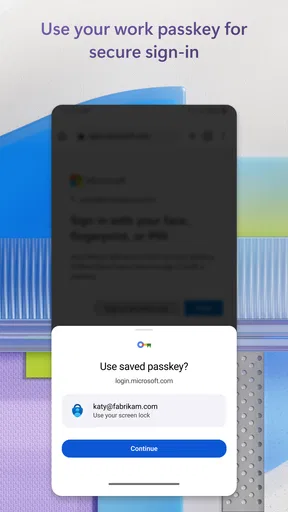
In today's world, security is king, and Microsoft Authenticator doesn’t skimp on it. The app uses strong encryption methods to protect your data. Plus, you can set up biometric authentication like fingerprint or facial recognition for added security.
One thing to note is that while the app is robust, it’s always a good idea to remain vigilant. Regularly updating your passwords and being cautious about phishing schemes never hurts.
Final Thoughts
So, is Microsoft Authenticator worth downloading? Absolutely. It’s a reliable, easy-to-use app that adds an essential layer of security to your online accounts. Whether you’re a tech newbie or a seasoned pro, this app fits right in.
In an age where our digital lives are constantly under threat, having a trusty companion like Microsoft Authenticator gives me peace of mind. So, go ahead, give it a whirl, and lock down your digital world with confidence.
Pros
- Easy setup and intuitive interface.
- Supports multi-factor authentication.
- Syncs across devices seamlessly.
- Offers password management feature.
- Secure cloud backup for data.
Cons
- No desktop app available.
- Limited customization options.
- Can be complex for beginners.
- Requires Microsoft account for full features.
- No offline access for cloud backup.
FAQs for Microsoft Authenticator
How does Microsoft Authenticator enhance security for my accounts?
Microsoft Authenticator provides an additional layer of security through two-factor authentication (2FA). When you log in to an account, the app generates a time-sensitive code required alongside your password. This ensures that even if your password is compromised, unauthorized access is prevented without the code provided by the app.
Can I use Microsoft Authenticator on multiple devices?
Yes, Microsoft Authenticator can be used on multiple devices. However, you must set up the app individually on each device. It’s crucial to ensure your accounts are synced and backed up, which the app supports through cloud backup, to maintain access if you switch or lose your devices.
Is an internet connection required for Microsoft Authenticator to work?
No, an internet connection is not necessary to generate authentication codes, as these are available offline. However, to receive push notifications for approvals or to sync and back up your account data, an internet connection is required. This feature ensures you can still authenticate even without connectivity.
What platforms and services are compatible with Microsoft Authenticator?
Microsoft Authenticator is compatible with a wide range of platforms and services. It supports any account offering 2FA, including major services like Google, Facebook, and Amazon, as well as Microsoft accounts. This flexibility makes it a versatile tool for securing various online identities.
How do I recover my accounts if I lose access to my device with Microsoft Authenticator?
To recover accounts, ensure you have enabled cloud backup within Microsoft Authenticator. This feature allows you to restore your accounts on a new device by simply signing in with your Microsoft account. Without backup, recovery might require contacting each service provider for alternative recovery options.


